Is your older iMac taking longer to start, struggling with everyday applications, or displaying messages about unsupported software? These problems can make a reliable computer frustrating to use. However, replacing your Apple desktop is not always the only answer. A suitable operating system upgrade, troubleshooting, or a storage improvement may help extend its useful life.
At FixMyPC Kilcock, customers can access Apple iMac repairs, software support, and hardware upgrade options. Our macOS upgrade services in Kilcock focus on finding a practical solution for your computer rather than promising that every vintage model can run the newest software. Understanding compatibility is the first step towards making an informed decision.
Why Older iMacs Develop Software Problems
An iMac may continue working for many years, but software requirements change. Developers stop supporting older operating systems, browsers introduce new security requirements, and modern applications demand more capable hardware. As a result, a computer that works perfectly for basic tasks may struggle when you install a new application or attempt an update.
Ageing storage can create difficulties. Traditional hard drives become slower or develop faults, while limited free space can interfere with updates. Background applications, outdated settings, and incompatible software can also affect responsiveness. These symptoms have different causes, so identifying the problem matters more than immediately reinstalling macOS.
Benefits of a Compatible macOS Upgrade
Better Application Compatibility
Many applications specify a minimum macOS version. Installing a newer version supported by your iMac may restore access to updated browsers, office applications, and other useful tools. Nevertheless, upgrading does not guarantee that every modern application will run. Check both the developer’s requirements and your computer’s hardware before proceeding.
Improved Security Where Updates Are Available
Keeping software updated is part of protecting personal information. Compatible macOS releases may include security fixes and improvements that are unavailable on older installations. Yet some vintage iMac models cannot run a macOS version that still receives current security updates. In those cases, a technician can explain the limitations and help you consider safer alternatives.
A More Reliable Daily Experience
Software updates sometimes resolve bugs, improve stability, and correct compatibility problems. Combined with appropriate maintenance, they can make tasks more convenient. Performance improvements depend on the condition of the device, however. Installing a newer operating system on unsuitable hardware might actually increase demands on memory or storage.
More Value From Existing Equipment
If your iMac remains suitable for browsing, writing, studying, or light office work, maintenance may postpone an unnecessary replacement. Keeping a serviceable computer in use can also reduce electronic waste. The sensible choice depends on the expected repair cost, ongoing software support, and how you intend to use the machine.
Signs Your iMac May Need Attention
Several warning signs suggest that professional assessment could be helpful:
- Applications refuse to install because your macOS version is too old.
- Websites display incorrectly or your browser no longer receives updates.
- Startup takes unusually long, even after closing unnecessary applications.
- Software updates repeatedly fail or stop during installation.
- Programs freeze, crash, or report missing system requirements.
- The computer displays storage warnings or unexpected disk errors.
- Your iMac restarts unexpectedly or gets stuck during startup.
Not every symptom indicates an outdated operating system. A failing hard drive, damaged system files, or other hardware faults can produce similar problems. A proper diagnosis helps avoid paying for an upgrade that will not address the underlying issue.
Can Every Vintage iMac Run the Latest macOS?
No. Apple publishes compatibility requirements for each macOS release, and different iMac generations support different versions. The newest officially supported operating system for your computer may be older than the latest release available for newer Macs. This distinction is important when discussing vintage models.
To identify your device, open the Apple menu and select About This Mac. Note its model information, installed macOS version, and available storage. A technician can compare these details with Apple’s compatibility guidance and assess whether an upgrade is feasible.
Some unofficial methods allow certain unsupported Macs to install newer systems. However, these approaches may introduce problems with graphics, wireless connectivity, updates, security, or overall stability. They are not guaranteed solutions, and they should never be described as universally safe. FixMyPC can help you assess the practical options for your specific iMac before making changes.
What Happens During an iMac Upgrade Assessment?
Checking the Model and Hardware
The process begins by identifying the iMac generation and examining its condition. Storage health, available capacity, and possible hardware faults all influence whether a macOS installation is likely to succeed. An assessment also helps reveal situations where repair should come before an operating system change.
Reviewing Essential Applications
Before changing systems, consider the programs you rely upon. Older accounting tools, design applications, printer drivers, and specialist software may not function on a newer macOS release. Checking those requirements beforehand can prevent an inconvenient surprise after installation.
Planning Data Protection
Important files should be backed up before a major upgrade. Apple provides Time Machine for Mac backups, although another suitable backup method may also be used. Check that your backup is complete and accessible. Where a disk is already failing, discuss recovery options before attempting an installation that could place additional stress on it.
Installing and Testing
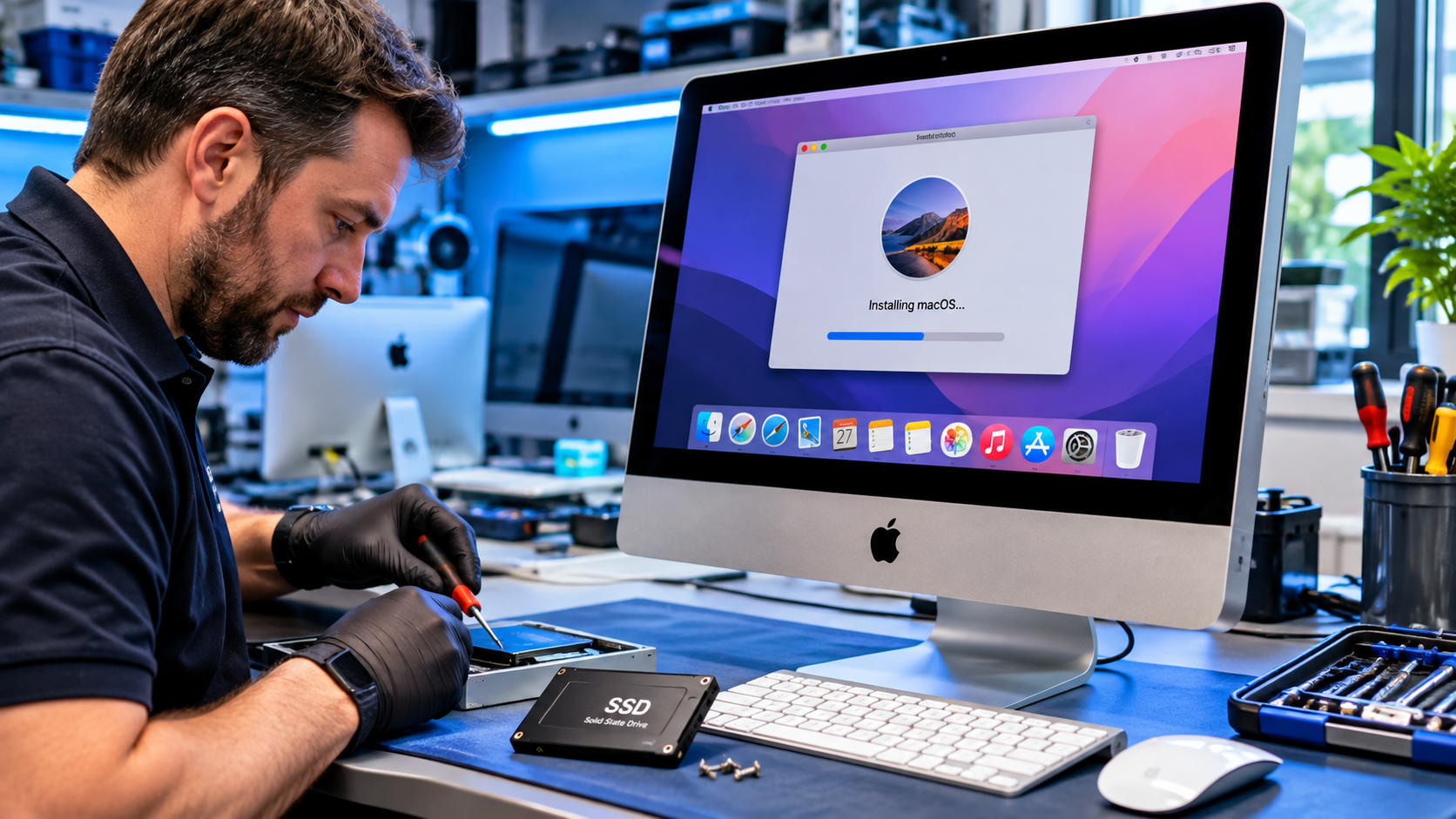
Once the appropriate approach is agreed, the operating system can be installed using a suitable method. Following installation, basic checks should cover startup, network connectivity, storage, and key applications. Additional troubleshooting may be needed if an existing hardware or software problem remains.
When an SSD Upgrade Makes More Sense
A slow vintage iMac does not necessarily need a newer operating system. Many older models use mechanical hard drives, which can make startup and application loading frustratingly slow. For compatible devices, replacing a hard drive with a solid state drive can provide a noticeable improvement in responsiveness.
FixMyPC advertises HDD to SSD upgrades as part of its Apple iMac repair services. A technician can assess whether this option is suitable for your particular model and explain any related considerations. Because the design of iMac computers varies significantly, the work and available upgrades depend on the machine.
An SSD does not remove macOS compatibility restrictions, and it cannot solve every performance issue. Still, it may offer better practical value than installing an operating system that places additional demands on ageing hardware.
Other iMac Repairs Available at FixMyPC
Sometimes a software problem is only one part of the picture. FixMyPC’s Apple iMac repair service also covers slow performance, screen faults, video issues, startup failures, and virus related concerns. These are useful services to consider when an older computer shows several symptoms at once.
For example, a device that cannot power on needs diagnosis before anyone can assess its installed software. Likewise, recurring display faults may require hardware attention rather than a macOS update. A targeted repair recommendation helps customers avoid unnecessary work and focus on restoring dependable operation.
If valuable photographs or documents are inaccessible, ask about data recovery before attempting repeated installations. Protecting important information should take priority over rushing into a system change.
Is Repairing an Older iMac Worth the Cost?
There is no single answer for every computer. An iMac used occasionally for email, documents, and browsing may remain useful after a modest repair. A machine required for current professional applications may need newer hardware, especially when its operating system no longer receives security updates.
Consider your budget, essential software, expected performance, and the cost of any required parts. Also consider whether a replacement computer would provide meaningful benefits that your existing device cannot offer. An assessment gives you information to compare options without assuming that the newest or most expensive choice is automatically best.
For many owners, the objective is straightforward: maintain a dependable machine for the tasks they actually perform. Choosing an appropriate combination of software maintenance and hardware repair can support that goal.
Why Choose FixMyPC Kilcock?
FixMyPC operates a repair centre in Kilcock, County Kildare, serving customers with Apple and other computer repairs. Its dedicated iMac service page describes support for slow computers, HDD to SSD upgrades, display issues, and systems that will not power on. This makes the business relevant to owners looking for help with an older Apple desktop.
Customers can visit the Kilcock repair centre or explore the nationwide Send by Post repair option. This postal service allows people outside the immediate area to arrange assessment and repair without travelling to the shop. Before shipping a desktop computer, follow the company’s packaging and booking instructions carefully.
The business serves customers across Kildare, Meath, Dublin, and surrounding areas. Whether you live near Kilcock or elsewhere in Ireland, checking the available service and repair arrangements is a sensible first step.
Practical Tips Before Booking a macOS Upgrade
First, write down the exact symptoms you have noticed and when they began. If an error message appears, save its wording or take a photograph. Next, check About This Mac for your computer’s model and macOS version. Make a list of essential applications and connected devices, including printers and external drives.
Back up your important data whenever the computer is still functioning well enough to do so. Avoid downloading unofficial installers from unknown websites, and do not assume that a newer operating system will automatically improve speed. Ask what compatibility checks and additional repairs might be required before approving work.
These simple preparations can make diagnosis easier and help you understand the recommendations provided for your iMac.
Give Your Vintage iMac a Second Chance
An ageing Apple desktop can still be valuable when it meets your needs. Compatible macOS upgrades, software troubleshooting, and selected hardware improvements may help keep it useful for longer. The important point is choosing a solution based on the computer’s real capabilities rather than making promises that its hardware cannot support.
If your iMac runs slowly, struggles with updates, or no longer supports familiar applications, contact FixMyPC Kilcock for guidance on the available repair options. You can explore the Apple iMac Repairs page, request a repair through the website, or speak to the team about your device.
Call FixMyPC on 01 504 7000 or visit Unit 2, Church Street, Kilcock, County Kildare, W23 HW89. Visit fixmypc.ie/apple-imac-repairs/ to learn about iMac repairs, or use fixmypc.ie/booking-form/ to request a repair assessment. Give your trusted computer the careful attention it deserves.eep your digital life vibrant and current. Drop by or ring us up — let’s keep your iMac, and our community, flourishing together.